Can you use Excel to create a powerful chart?
Spreadsheet tools such as Microsoft Excel or Numbers might not be the first thing on your mind when considering data visualization tools, but they can be pretty solid choices to build data visuals. Don’t let anyone convince you that using Excel to create data visuals is unprofessional. In my practice as an information designer I have created many charts in both Excel and PowerPoint, in particular for clients who wanted some degree of flexibility in modifying the visuals themselves.
Spreadsheet tools are more powerful than you might think
Spreadsheet applications allow us to create almost any type of chart in the family of bar charts, line charts and pie charts – including stacked bar charts, area charts, and so on. But even more ‘exotic’ alternatives such as treemaps, sunburst diagrams, candlestick charts, radar charts and waterfall charts are available.
The strength of spreadsheet tools lies more in building the charts than in polishing their design. We could use Excel to create the basic shapes that will make up the core of the data visual, and then export them to another, more design-oriented tool such as PowerPoint or Adobe Illustrator to further modify the colours, annotations and layout – or to combine multiple graphs into a single chart. Nevertheless, most of these things are possible in spreadsheet tools as well, although they might require a bit more tinkering and clicking around.
Move away from the defaults
The challenge in these situations is to move away from the default options. It takes some time and patience, and maybe some visual trickery, but it pays off!
This is how a default visual might look like: it has no visual hierarchy, boring default colors, the legend takes up a lot of space, and the numbers are hard to read.
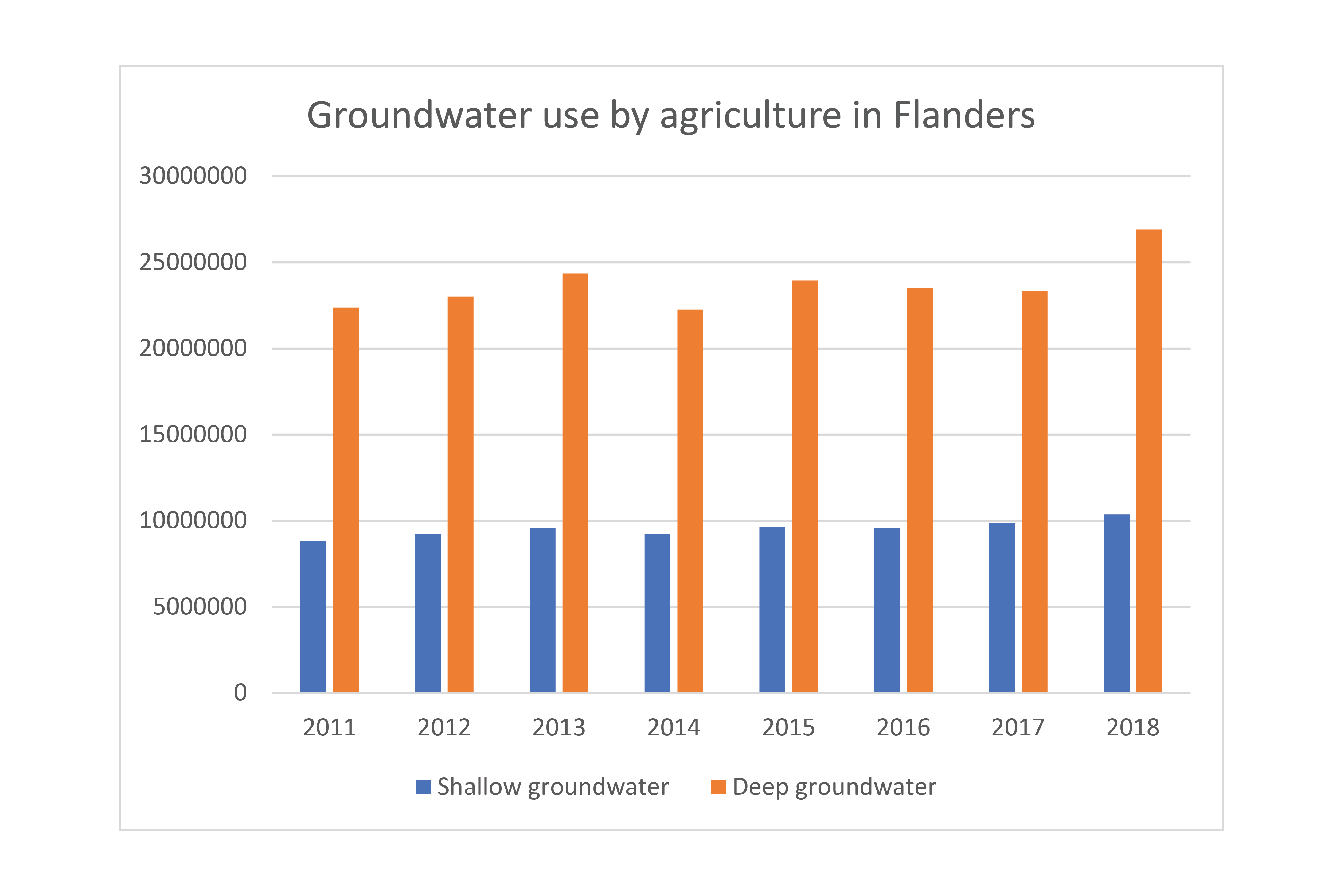
In the reworked visual below we changed the orientation of the bar chart from vertical to horizontal, we chose a better colour scheme, and we used direct labelling to remove the legend and gridlines. The end result contains exactly the same data as the default chart, but presented in a much clearer and more structured way.

Both of these charts were created from scratch using nothing but Microsoft Excel. Creating powerful charts is not about the tools you use, it’s all about applying the right principles!
If you want to know more about visualizing data in the right way, you can check out the other videos in this series. Or I invite you to read my book, Powerful Charts, that will give you actionable insights and practical guidelines to create data visuals that truly engage and inspire your audience.
Full video series
- 01. Why is data visualization so powerful?
- 02. Why is data visualization so challenging?
- 03. Navigating the landscape of powerful charts
- 04. A powerful chart tells a story
- 05. A powerful chart has a high signal-to-noise ratio
- 06. Making a data visual noise-free
- 07. 7 different goals for your chart
- 08. Three roles of colour in a data visual
- 09. Choosing the right font for your data visual
- 10. Can you use Excel to create a powerful chart?

Read more:

Dear Data: Dataviz book review
Last February, on a cold and rainy day, I received the Dear Data book as part of a Dataviz Drawing workshop by Stefanie Posavec. A pretty large and heavy book, the kind you could put on your coffee table to show off (which I did!). Let's review it!
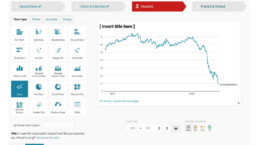
Data visualization tools: Datawrapper
If you are writing articles online and need to quickly insert beautiful, interactive charts, maps or tables, Datawrapper is the tool you are looking for.
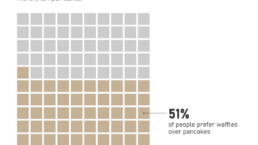
Uncommon chart types: Waffle charts
If you thought a pie chart was the only food-related chart type out there, think again! Waffle charts are a great alternative.

We are really into visual communication!
Every now and then we send out a newsletter with latest work, handpicked inspirational infographics, must-read blog posts, upcoming dates for workshops and presentations, and links to useful tools and tips. Leave your email address here and we’ll add you to our mailing list of awesome people!