Gridlines are better than axes
Almost always, gridlines are better than axes. At least for vertical axes.
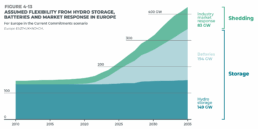
I admit, vertical axes are the default option, and they have been around for centuries, so they are very well known. But your typical vertical axis also has some downsides. My biggest problem with vertical axes is that they’re often so far away from where the action is really happening. Take a typical chart like this, were nothing is really happening on the left (all the values are zero), but the growth is really big on the right hand side of the visual:
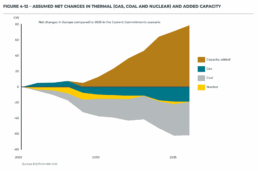
If you want to know the data values near the end of the chart, in 2036 in this case, we almost have to take out a ruler to measure, but the lack of axis ticks (the little horizontal lines next to the numbers) and the distance make that hard to do:

A simple compromise is to move the axis to the right hand side of the visual, where it’s much closer to the ‘action’ — the values we’re actually most interested in:

We had to move the legend to the left in order to free up some space for the axis, but it actually worked out really well. Notice also how we’ve added some explicit tick lines to increase the precision of the visual.
However, moving the vertical axis to the right hand side is not always an option. Often, we’ll have some direct labels or annotations on that side that make it harder to fit in the axis. It would create too much of a barrier between the data and the text. Take this visual for example:
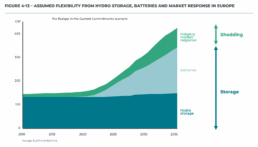
This is a really clean, strong visual thanks to the use of direct labels and some helpful annotations to the right. The only thing I don’t really like is that lonely vertical axis sticking out like a sore thumb at the left side of the visual. However, these labels and annotations are in the way when we want to move the axis to the right:
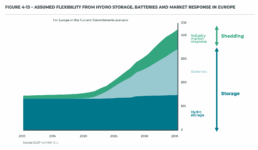
I’m probably just nitpicking, but that doesn’t look so great to me! In these situations, I will always prefer to switch to gridlines. Yes, they take up more space and create more ‘stuff’ in the visual, but they have two major benefits:
✅ more precision if you’re trying to estimate data values
✅ this precision boost impacts all parts of the visual: left, middle, and right
Here’s how that looks like for the visual above:
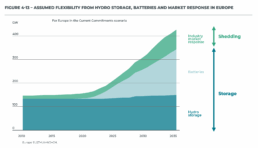
I’ve made the colored areas a little bit transparent, so you can still see the gridlines clearly enough. Notice how you can quite easily see that the total value is growing to 200 GW by 2025, and reaching 300 GW by 2030. These intermediate values were quite hard to read in the original visual!
Some final cleanup things we can do:
- nicely align the subtitle and the note with the rest of the visual
- add ticks to the horizontal axis as well
- optimize the annotation to the right, brackets would make more sense here than arrows I think
- add explicit data values for the different categories in 2035 to further increase precision
- move the ‘GW’ label to the tick label
This is how the end result looks like:

Finally, a small bonus tip. If for some reason you’re tight on space, and you have to squeeze your chart a bit to make everything fit, you don’t have to make your gridlines go all the way from left to right. You could consider only having them show up when they’re needed. That would give you some extra whitespace to fit, for example, your title and subtitle:
Of course, that’s something not every #dataviz tool will allow, so that’s only for when you’re willing to make some final custom modifications for your report.
Here’s the full comparison between our original visual, and the reworked chart:

Note: visuals taken from Elia’s ‘Adequacy and flexibility study for Belgium, 2026–2036’, which you can access here: Adequacy and flexibility study for Belgium (2026–2036) by Elia Group — Issuu
Read more:
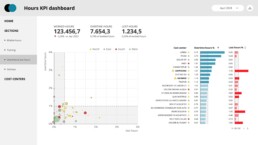
Tell me why… I don’t like dashboards
I don't like dashboards. Well, most dashboards at least. They're just trying too hard... to do everything, everywhere, all at once. Why is that? And is there a better solution?
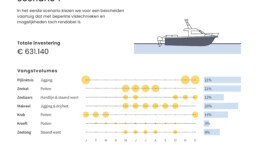
Why I love matrix charts
This one is definitely in my top 5 of favourite chart types: a matrix chart! Super flexible, can provide some great insights into the data, and it will fit well into your beautiful report design.
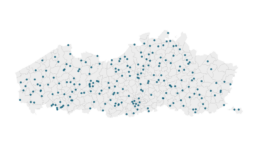
Vreemde plaatsnamen in Vlaanderen
Iedereen kent wellicht 'Kontich' en 'Reet', maar in Vlaanderen hebben we nog veel meer merkwaardige, onverwachte, en vaak grappige plaatsnamen. Heb je bijvoorbeeld ooit al gehoord van Buitenland, Dikkebus, of Grote Homo?
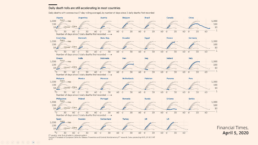
Small multiples can save your chart
When you're dealing with a chart that has too much information on it, the most straightforward advice to follow is: break it down into multiple charts, each with less information on them. A powerful example of this is a so-called small multiple approach.

Can you use Excel to create a powerful chart?
Spreadsheet tools such as Microsoft Excel or Numbers might not be the first thing on your mind when considering data visualization tools, but they can be pretty solid choices to build data visuals. Don’t let anyone convince you that using Excel to create data visuals is unprofessional.

Choosing the right font for your data visual
Fonts evoke emotions: there are very sophisticated fonts, playful fonts, attention-grabbing fonts, and elegant handwritten fonts. Using the wrong type of font can have a lot of impact. In data visualization the implications of typography are mainly focused on readability. Labels and annotations can easily become so small they get hard to read. Above all else, we should choose a font which is readable at small sizes.
We are really into visual communication!
Every now and then we send out a newsletter with latest work, handpicked inspirational infographics, must-read blog posts, upcoming dates for workshops and presentations, and links to useful tools and tips. Leave your email address here and we’ll add you to our mailing list of awesome people!